
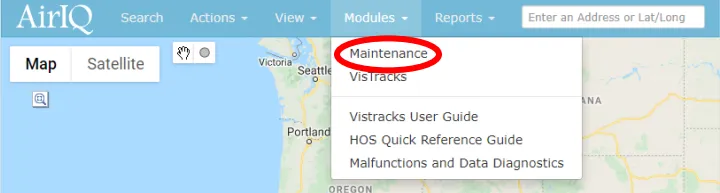
On AirIQ Fleet, select “Modules,” then “Maintenance.”
The Maintenance Module is located under the Modules drop down menu on the AirIQ Fleet toolbar, as indicated in the image below:
Upon selection of “Maintenance,” you’ll see a screen with all of your company’s assets, each with “Schedules” and “Service” buttons respectively:
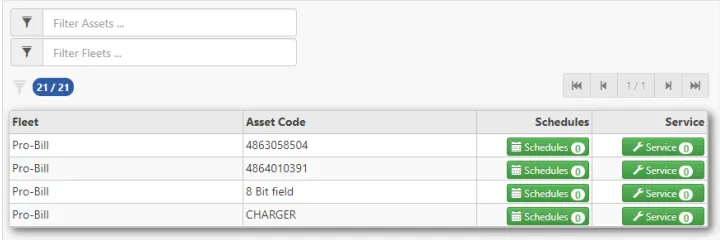
You can use the “Filter Assets” and “Filter Fleets” fields above the table to search for an asset or fleet you’re looking for.
Select the respective "Schedules" button for the asset you wish to modify.

You will then see the following screen, showing any scheduled maintenance you already have, or in this case, nothing, as we have not added any schedules yet. You will also see the last reported engine hours and odometer.

Select “+ New Schedule” in the top right corner.
You will then see the following screen:
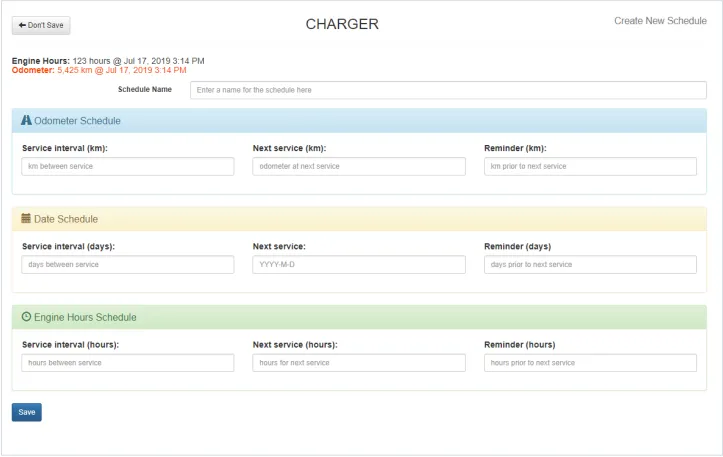
Enter a Schedule Name and fill in the details for whichever type of schedule you need. Example below
For example, if your schedule is odometer based, enter only the “Odometer Schedule” fields.

EXAMPLE: The values for “Odometer Schedule” shown in the image above will produce the following results for an oil change schedule:
Once completed, select “Save.”
This will add a new maintenance schedule to your asset, which you will now see by following step 2.