
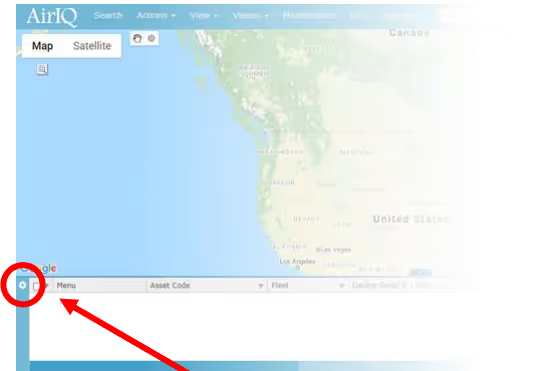
The Grid and Card options menu allows you to change various viewing preferences for your asset list. The menu can be found by clicking the settings cog on the left-hand side of the grid, as shown below:
The Geofence editor will open up in a new tab.
Grid or Card View (desktop)
This option allows you to change the asset viewing window to display as a grid (like a spreadsheet) or asset-by-asset (cards).Grid view is intended for desktop use, and Card view is intended for mobile/tablet use. The default is “Auto (best fit),” but this can be overwritten if you have preference or are experiencing issues with the current view.
Grid or Card position (desktop)
Here, you can choose where to show the grid/card view you have selected. You can choose to have it along the side of the screen, or bottom of the screen.
Grid Columns Shown (desktop)
This dropdown allows you to select and/or deselect any columns you wish to not appear in the grid.
Grid Menu Style (desktop)
This option allows you to choose the type of menu style when viewing AirIQ Fleet on desktop, between the classic layout of buttons (menu strip), or a menu wheel. Depending on the size of your screen, one option may be better than the other.
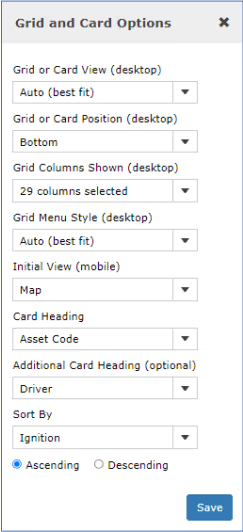
Initial View (mobile)
Here, you can choose which view (map or asset list) you see by default after logging into AirIQ Fleet on mobile.
Card Heading and Additional Card Heading (optional)
Allows you to choose which header(s) your cards are identified by when using card view (i.e. cards can be identified by driver as the header, by VIN as the header, etc.). You can also choose an additional heading(optional) to appear alongside the actual heading.
Sort By
Here, you can simply sort the asset list by attribute, for example: ignition or driver. You can also choose to have the sort ascending or descending.
Note: After making any changes, you may need to refresh your browser window.