Downloading video clips from AirIQ Fleet:
To view historic video/recordings, simply select your camera asset and perform a history query. You’ll notice a new film icon appear under the “Actions” column.
You can download any video clip you see on AirIQ Fleet. Depending on the event type, the camera may need to be powered or in standby mode for you to be able to download (tracking, leave/arrive):
- On AirIQ Fleet, perform a history query for the date, time, and asset you wish to download video from.
- Click the film icon of the event you want to download.
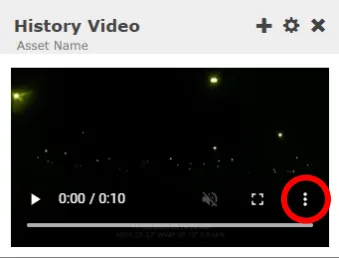
- Once the video shows up, click the 3 dots icon in the bottom right corner
- Click “Download.”